 Final Code
How to test your app on iPhone and Android
Every way to run an app on a phone from your Mac, step by step, with honest pros and cons, and the one-window way to do it.
If you are asking "how do I test my app on iPhone and Android?", the honest answer is that there are about eight different ways, and each one solves a different problem. Some are free and fast but not quite real. Some are real but slow. Some only work for one kind of project.
This guide explains every common option in plain words: what it is, how to set it up, and when it is the right choice. At the end, we show how Final Code, a Mac app, runs your app on simulators, emulators and real phones so you do not have to pick just one.
You will need a Mac for anything involving iPhones. Apple's tools for building iPhone apps only run on macOS.
Quick answer
- For everyday coding: use the iOS Simulator and the Android Emulator. They are free and fast.
- Before you share anything: test the app on a real device, because phones behave differently from simulators.
- To give the app to testers: use TestFlight on iPhone and an internal testing track on Google Play.
- To do all of this from one window: use a tool like Final Code, which runs every device in one window.
1. The iOS Simulator
The iOS Simulator comes with Xcode, Apple's free developer app from the Mac App Store. It shows an iPhone or iPad in a window on your Mac and runs a version of your app built for the Mac's processor.
How to use it
- Install Xcode from the Mac App Store and open it once so it can finish installing its components.
- In Xcode, add the iOS platform if it asks, then open your project.
- Choose a simulator (for example an iPhone model) from the device menu at the top of the window.
- Press Run. The Simulator opens and your app launches.
Frameworks such as React Native, Expo and Flutter have their own commands that open the Simulator for you, but they still rely on Xcode being installed.
Pros and cons
- Pros: free, quick to start, no phone needed, many iPhone and iPad sizes, easy screenshots.
- Cons: it is not a real phone. Performance, memory, the camera and other hardware behave differently or are missing, and it uses a development build, not the release build your users will get.
2. The Android Emulator
The Android Emulator comes with Android Studio, Google's free development app. It runs a full Android system in a window, using a virtual device you create.
How to use it
- Install Android Studio and let it download the Android SDK.
- Open the Device Manager and create a virtual device: pick a phone model and an Android version.
- Start the virtual device, then run your app from Android Studio or from your framework's command.
Pros and cons
- Pros: free, many screen sizes and Android versions, works without a phone.
- Cons: needs a lot of disk space and memory, setup has many moving parts (SDK, Java, system images), and like the Simulator it is not a real phone.
3. A real iPhone over a cable
Testing on a real device is the only way to know how your app feels in the hand: real speed, real touch, real camera, real network. On iPhone, the first connection is always by cable.
How to do it
- Connect the iPhone to your Mac with a cable and unlock it.
- Tap Trust when the iPhone asks whether to trust this computer, and enter the passcode.
- On recent iOS versions, turn on Developer Mode in Settings, Privacy & Security. The phone restarts once.
- In Xcode, sign in with your Apple account and choose a team in your project's Signing settings.
- Pick the iPhone from the device menu and press Run.
- If the iPhone says the developer is untrusted, open Settings, General, VPN & Device Management, tap your developer profile and tap Trust.
Pros and cons
- Pros: the real thing. You find problems simulators hide.
- Cons: signing is the step most people struggle with. With a free Apple account, apps stop opening after a short time and you have to install again; a paid Apple Developer Program membership removes that limit. Xcode can later connect over the network, but the first pairing needs the cable.
4. A real Android phone over a cable
Android is more relaxed about installing your own apps, but you still need to switch on a hidden menu.
How to do it
- On the phone, open Settings, About phone, and tap Build number seven times. You will see a message that developer options are on.
- Open Settings, System (or the developer options menu, depending on the brand), and turn on USB debugging.
- Connect the phone to your Mac with a cable that carries data, not just charge.
- On the phone, allow USB debugging for this computer when it asks. Tick "Always allow" to skip this next time.
- Run your app from Android Studio or your framework's command, choosing the phone as the target.
Pros and cons
- Pros: no account or fee needed, installs quickly, real hardware.
- Cons: menus move between brands, some cables only charge, and you need the Android tools installed on your Mac.
5. A real Android phone over Wi-Fi
On Android 11 and later, you can debug without a cable using Wireless debugging.
- Make sure the phone and the Mac are on the same Wi-Fi network.
- In developer options, turn on Wireless debugging and tap it to open its settings.
- Tap Pair device with pairing code. The phone shows a six-digit code and an address.
- Enter the code on your Mac in the tool you use. Once paired, the phone appears as a device you can run apps on.
Pros: no cable, phone stays free in your hand. Cons: both devices must be on the same network, some office and hotel networks block it, and the connection can drop when the phone sleeps.
6. TestFlight for iPhone testers
TestFlight is Apple's way to hand a build to other people. You upload a release build to App Store Connect, Apple processes it, and testers install it with the TestFlight app.
- Join the Apple Developer Program (a paid yearly membership).
- Create the app in App Store Connect.
- Archive a release build and upload it, from Xcode or another build service.
- Wait for processing, then add internal testers (people on your team) or external testers. External testers need the build to pass Apple's beta review.
Pros: the standard way to share iPhone builds, testers get updates automatically, crash reports come back to you. Cons: each round means an upload and processing wait, external testing needs review, builds expire after 90 days, and it is iPhone only. It is great for handing over a finished build and slow for the hundred small test runs before that.
7. Google Play internal testing
Google Play has testing tracks: internal, closed and open. Internal testing is the quick one, meant for a small group you choose.
- Create a Google Play Console developer account (a one-time fee).
- Create the app and upload a release bundle to the internal testing track.
- Add testers by email and share the opt-in link.
- Testers open the link, accept, and install from the Play Store.
Pros: testers install like a normal app and get updates through the Play Store. Cons: you need a Play Console account, every test needs an upload, and newer personal developer accounts also have extra closed-testing steps before they can publish. You can also send an APK file directly, which is fast but means testers must allow installs from unknown sources.
8. Expo Go
If your project uses Expo, Expo Go is an app from the App Store and Play Store that loads your JavaScript over the network. Start your project's dev server, scan the QR code, and the app opens on your phone.
Pros: very quick to start, no signing, changes appear immediately. Cons: it only works for Expo projects, only with the libraries already inside Expo Go and the Expo SDK version it supports, and it is not your real app. Once you add custom native code, you need a development build instead, and what you test is still not the release build users get.
9. Cloud device services
Cloud device labs let you rent time on real phones in a data centre and control them through a browser. They are popular with large teams that need hundreds of device models.
Pros: huge choice of devices and OS versions, good for automated test suites. Cons: usually paid per minute or per seat, there is a delay between your click and the phone's response, and your app has to be uploaded to someone else's servers. For daily work on your own app they are often more than you need.
| Method | Real device | Needs an account | Speed to see a change | Best for |
|---|---|---|---|---|
| iOS Simulator | No | No | Fast | Daily coding on iPhone layouts |
| Android Emulator | No | No | Fast | Daily coding on Android layouts |
| iPhone by cable | Yes | Apple account | A build each time | Checking how it really feels |
| Android by cable or Wi-Fi | Yes | No | A build each time | Real hardware, no fees |
| TestFlight | Yes | Paid Apple developer | Upload and processing | Handing builds to iPhone testers |
| Play internal testing | Yes | Play Console | Upload | Handing builds to Android testers |
| Expo Go | Yes, but not your real app | No | Instant | Early Expo prototypes |
| Cloud devices | Yes, remote | Paid service | Upload | Testing many models |
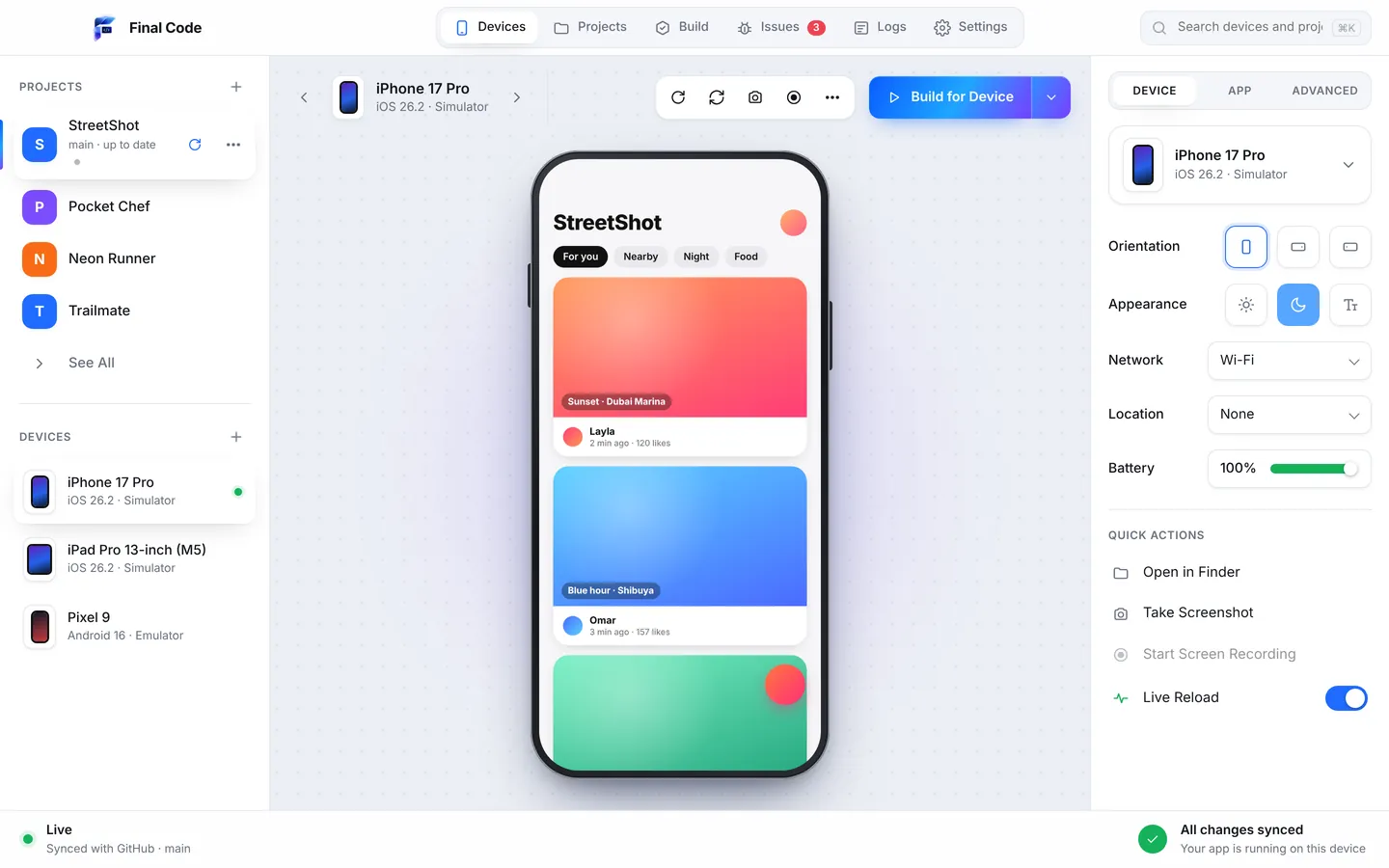
How to run your app on phone from Mac in one window with Final Code
Every method above is useful. The problem is that you usually need four or five of them, each with its own program, settings and quirks. Final Code is a Mac app that brings the everyday ones together: iOS Simulators, Android Emulators, real iPhones and iPads by cable, and real Android phones by cable or Wi-Fi in one window, with no terminal.
Step by step
- Download and install. Get Final Code from the download page, open the.dmg and drag it to Applications. It needs macOS 13 Ventura or later, on Apple silicon or Intel.
- Sign in and start the trial. Sign in with your email and a 6-digit code. The 14-day free trial starts in the app, no card needed.
- Get set up. Final Code checks what is already on your Mac. Anything missing (Xcode components, simulators, the Android SDK and emulators, Java, CocoaPods, Node) installs with one click each.
- Connect your Apple account. Add an App Store Connect API key or use the account already in Xcode. Final Code then signs apps for your iPhone automatically, in every project.
- Open your project. Choose a folder or "Open from GitHub". Final Code detects React Native, Expo, Flutter, native iOS and Android, Capacitor, web apps and games, and runs a Project check that fixes what is safe to fix.
- Connect your phones. Plug in an iPhone, unlock it and tap Trust. Plug in an Android phone with USB debugging on, or pair it over Wi-Fi with its pairing code.
- Pick devices and press Run. Choose any mix of simulators, emulators and phones. Simulators and emulators appear live inside the window; real phones get a real release build with your code inside.
- Edit and watch. Save a file and every open simulator and emulator updates instantly. Native rebuilds only happen when native code or libraries change.
- Fix what breaks. Errors and crashes land in the Issues box with the device, stack and the log lines just before. Real phones get a session log for every launch, with crash reports in readable function names.
- Share and go back. Every phone build is kept in build history with its commit, date and size. Reinstall any of them in one click, or share an Android build on the same Wi-Fi with a link and QR code.
When the app is ready for a wider group, send the finished build through TestFlight and Google Play testing as usual. Final Code covers the many test runs before that point; the stores cover distribution.
Which method should you choose?
- You are just starting: simulator and emulator first, then your own phone once a screen works.
- You build with Expo: Expo Go is fine for the first sketches. Move to real builds as soon as you add native libraries.
- You build with AI tools: test on real devices early, because AI code often works in development and fails in release. Our page for AI app builders explains how Final Code helps.
- You have testers: TestFlight and Play internal testing are the right tools for handing over builds.
- You need many device models for automated tests: a cloud device service may be worth the cost.
For short fixes such as trusting a developer certificate or turning on USB debugging, see our practical guides. To see how tools compare, visit the compare page.
How do I test my app on iPhone and Android ?
Use a tool that can drive both platforms from one Mac. Final Code runs iOS Simulators, Android Emulators, real iPhones by cable and real Android phones by cable or Wi-Fi in one window. Press Run once and it builds for each platform, installs on every device you picked and updates simulators and emulators together when you save.
How do I test an app on a real device?
For iPhone, connect it to a Mac by cable, tap Trust, turn on Developer Mode, sign the app with an Apple account and run it from Xcode or a tool like Final Code. For Android, turn on developer options and USB debugging, connect the phone, allow the computer, and run the app. Android can also pair over Wi-Fi.
Can I run my app on my phone from a Mac without the App Store?
Yes. During development you install your own app directly from your Mac. On iPhone it must be signed with your Apple account; on Android you just need USB debugging or wireless debugging turned on. The App Store and Google Play are only needed when you want to share the app with people outside your own devices.
Is the iOS Simulator enough to test an app?
It is enough for most layout and logic work, but not for a final check. The Simulator runs on your Mac's processor with a development build, so speed, memory, the camera and other hardware differ from a real iPhone. Always test the release build on at least one real phone before you share it.
Do I need a paid Apple Developer account to test on my iPhone?
Not always. Xcode can sign apps for your own iPhone with a free Apple account, but those apps stop opening after a short time and must be reinstalled. A paid Apple Developer Program membership removes that limit and is required for TestFlight and the App Store.
How do I fix "Untrusted Developer" on iPhone?
Open Settings on the iPhone, then General, then VPN & Device Management. Under Developer App, tap the profile with your Apple account or team name, then tap Trust and confirm. Open your app again and it will launch. You only need to do this once per developer profile on that phone.
How do I turn on USB debugging on Android?
Open Settings, About phone, and tap Build number seven times until you see that developer options are on. Then open developer options (often under Settings, System) and switch on USB debugging. Connect the phone to your Mac with a data cable and tap Allow when the phone asks to trust the computer.
What is the difference between TestFlight and testing from my Mac?
TestFlight sends an uploaded build through Apple to testers, which takes processing time and, for outside testers, a review. Testing from your Mac installs a build straight onto phones connected to it, in seconds to minutes. Use your Mac for the many quick test runs while building, and TestFlight to hand finished builds to other people.
Is Expo Go the same as testing the real app?
No. Expo Go is a ready-made app that loads your JavaScript, so it only supports the libraries already inside it and one Expo SDK version. Your real app has its own native code, icon and settings, and may behave differently in a release build. Expo Go is good for early sketches; test a real build before you share.
Can I test my iPhone app on Windows?
Not directly. Apple's tools for building and signing iPhone apps, including Xcode and the iOS Simulator, only run on macOS. On Windows you can test Android apps with the Android Emulator or a real phone. For iPhone you need a Mac, either your own or a remote one, or a cloud device service.
Product names are trademarks of their owners. Information based on publicly available documentation as of October 2026.
Every way to test, in one window.
Run your app on simulators, emulators and real phones. Free for 14 days, no card needed.