 Final Code
The mobile app testing tool for Mac that runs every device in one window
Real iPhones, iPads, Android phones, simulators and emulators in one window. Here is everything Final Code does, and why each part matters.
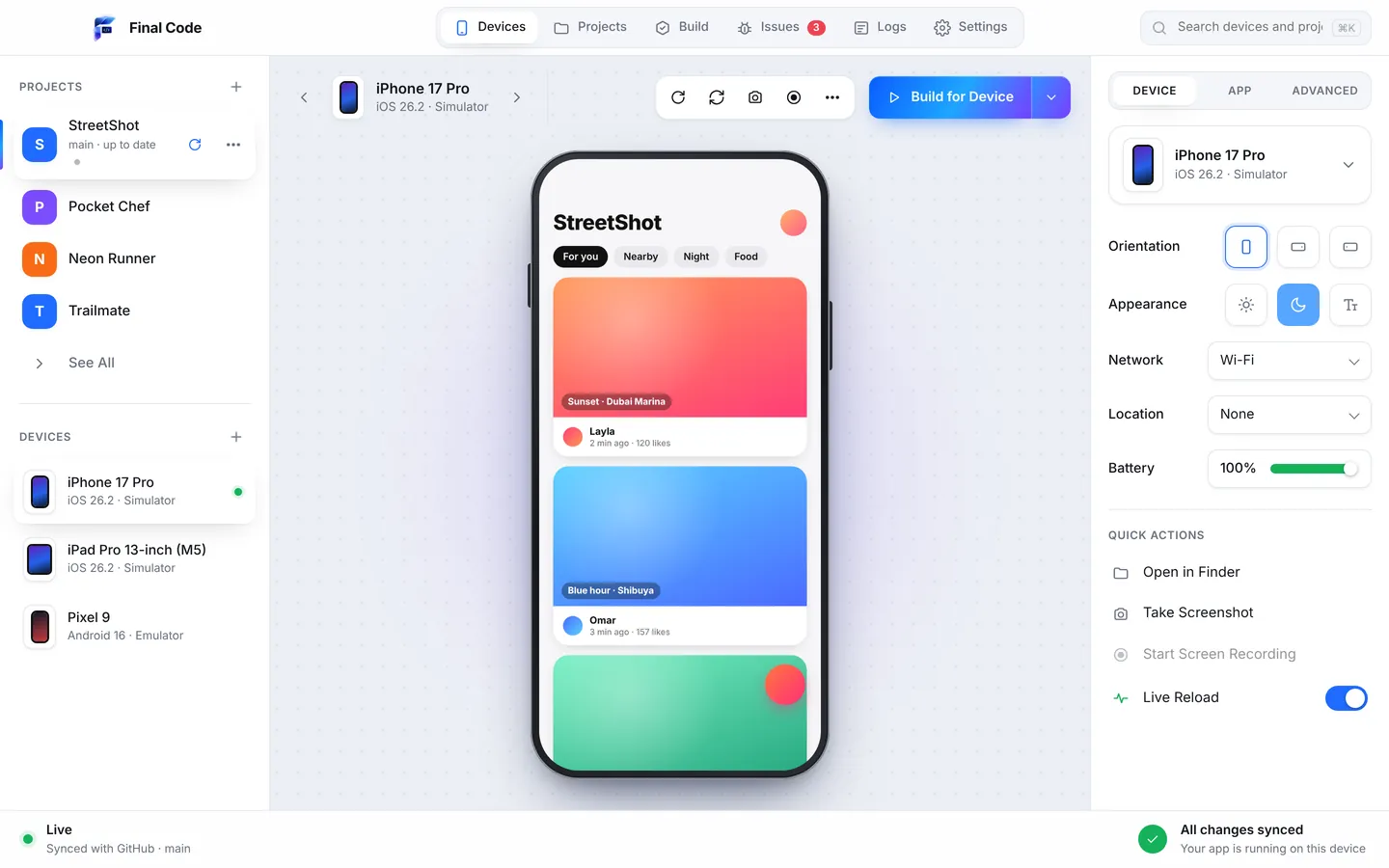
Final Code is a mobile app testing tool for Mac. You open a project, pick the devices you care about, and press Run. It builds your app, puts it on real iPhones, iPads and Android phones, on iOS Simulators and Android Emulators, and on web screen shapes, and lets you switch between them in one window. When something breaks, it tells you what happened in plain words and, where it is safe, fixes it for you.
It is made for everyone who builds apps: people writing their very first one, indie developers, studios, agencies, and the growing number of people who build apps with AI coding tools like Claude, ChatGPT, Cursor, GitHub Copilot, Gemini and Windsurf. You never need to open a terminal.
This page walks through every feature, grouped the way you will meet them. If you would rather see it working, download Final Code and start the 14-day free trial in the app. No card needed.
Which projects does Final Code run?
Final Code looks at your folder and works out what kind of project it is. There are no setup files to write and no build scripts to configure. It detects and runs:
- React Native (bare) and Expo (managed, bare, with or without a development client, including Expo Router)
- Flutter
- Native iOS: Swift, SwiftUI and Objective-C Xcode projects and workspaces
- Native Android: Kotlin and Java Gradle projects
- Capacitor and Ionic
- Web apps and built websites with a dev server: React, Next.js, Vite, Vue, Svelte, plain HTML and more
- Games: Unity (iOS and Android exports built for you), three.js and other web games, React Native Filament
Monorepos with several apps inside (for example apps/user and apps/admin) are detected too, and you switch between the apps in one click. Projects without git work as well, so a folder you just unzipped is fine.
Devices: the iOS Simulator and Android Emulator in one app, plus real phones
Most people test on one device at a time because switching is slow. Xcode runs the iOS Simulator, Android Studio runs the Android Emulator, and real phones each need their own steps. Final Code puts all of them in one place so you can run your app on several devices and flip between them to see the differences straight away.
Live mirrored simulators and emulators
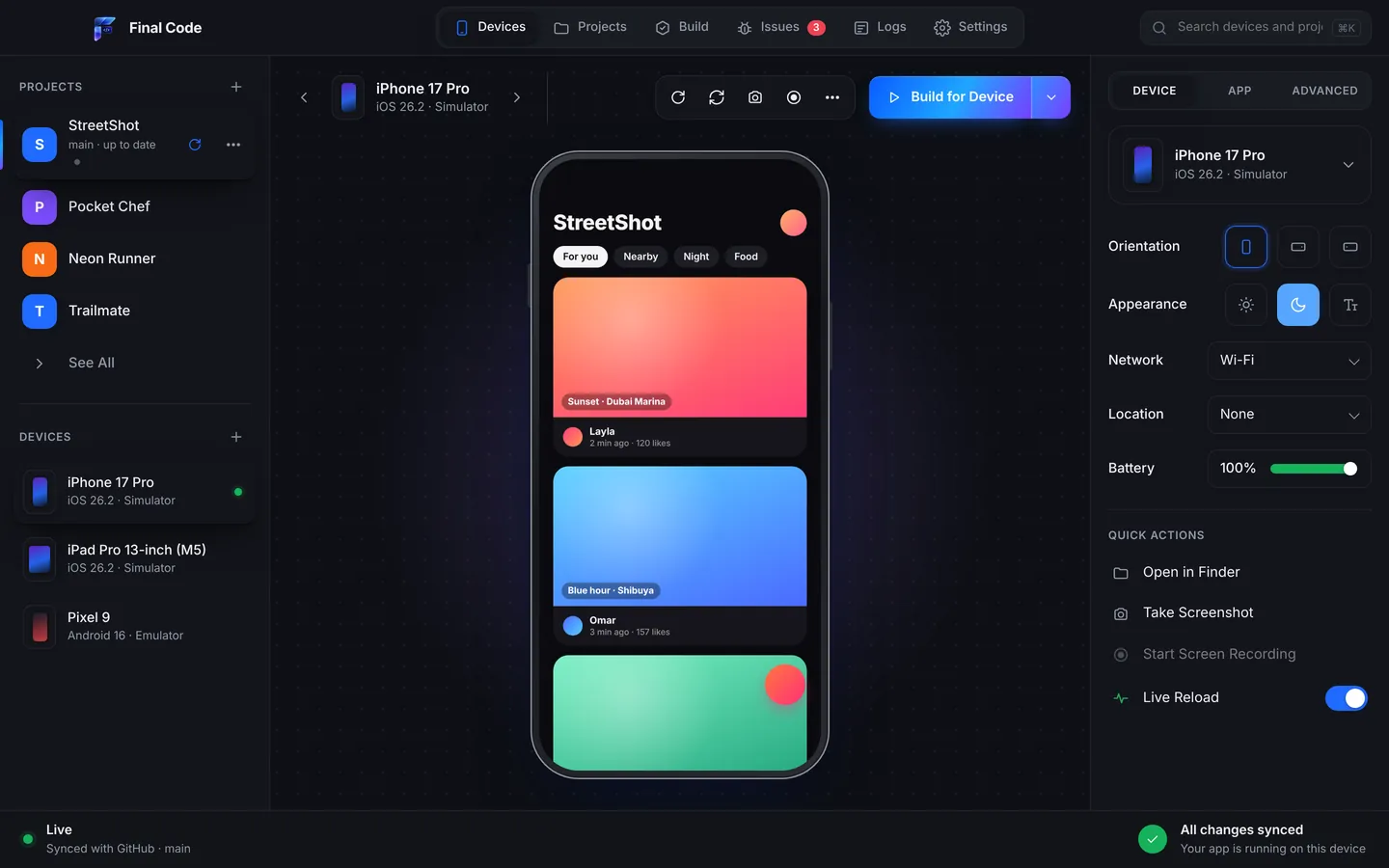
iOS Simulators and Android Emulators appear inside the Final Code window. Click and swipe to touch, type with your keyboard, rotate, and press home or back. They feel like part of the app, not a separate program.
Switch devices in one click
Open several devices and switch between them in one click to compare layouts. You can also pop a single device out into its own window and park it on a second screen.
Real iPhones and iPads
Connect an iPhone with a cable, unlock it and tap Trust. Final Code signs the app for that phone and installs it. No extra steps in Xcode.
Real Android phones, cable or Wi-Fi
Plug in an Android phone with USB debugging turned on, or pair it over Wi-Fi with a pairing code and leave the cable in the drawer.
Real release builds on real phones
Phones get a proper release build with your code inside, like TestFlight but straight from your Mac in seconds to minutes. What you test is what your users will get.
Web screen shapes
Preview a web app in iPhone, iPad, Android and foldable shapes, so you can check a responsive site the way people will hold it.
iPhone Duo simulator
Final Code can create a simulator for Apple's foldable iPhone Duo, so you can see your app on the cover screen and unfolded. This needs a recent Xcode.
Inspector for every device
Switch orientation (portrait, landscape, flipped), light or dark appearance, larger text, and the network: Wi-Fi, 5G or offline. Great for finding the screen that breaks when the signal drops.
Location and battery
Move a device to Dubai, London, New York, San Francisco or Tokyo with a GPS preset, and set the battery level to see how your app behaves when it runs low.
Screenshots and recordings
Take a screenshot of one device or every open device, record the screen, and open the screenshots folder in one click. Handy for store listings and bug reports.
Speed and live updates
The slowest part of testing is waiting. Final Code is built so that you wait once, at the start, and then hardly at all.
Instant updates on every open device
Save a file and the change shows on your simulators and emulators straight away with live reload and Fast Refresh. Every open device updates together, so you see the iPhone and the Android version of the change at the same moment.
Smart native rebuilds
Final Code only rebuilds the native app when native code or libraries change. Otherwise it reuses the last build, which saves minutes every time.
Shared downloads
Libraries and tools downloaded for one project go into a shared cache that every project reuses. Your second project starts much faster than your first.
Compiler cache
Native builds use a compiler cache, so parts of your app that did not change are not compiled again.
Honest progress
Builds show a percentage and the time so far. The first build takes a few minutes; after that, changes are instant.
Clean rebuild when you need it
If something feels stuck, one button cleans the build and rebuilds from scratch. No hunting for hidden cache folders.
GitHub
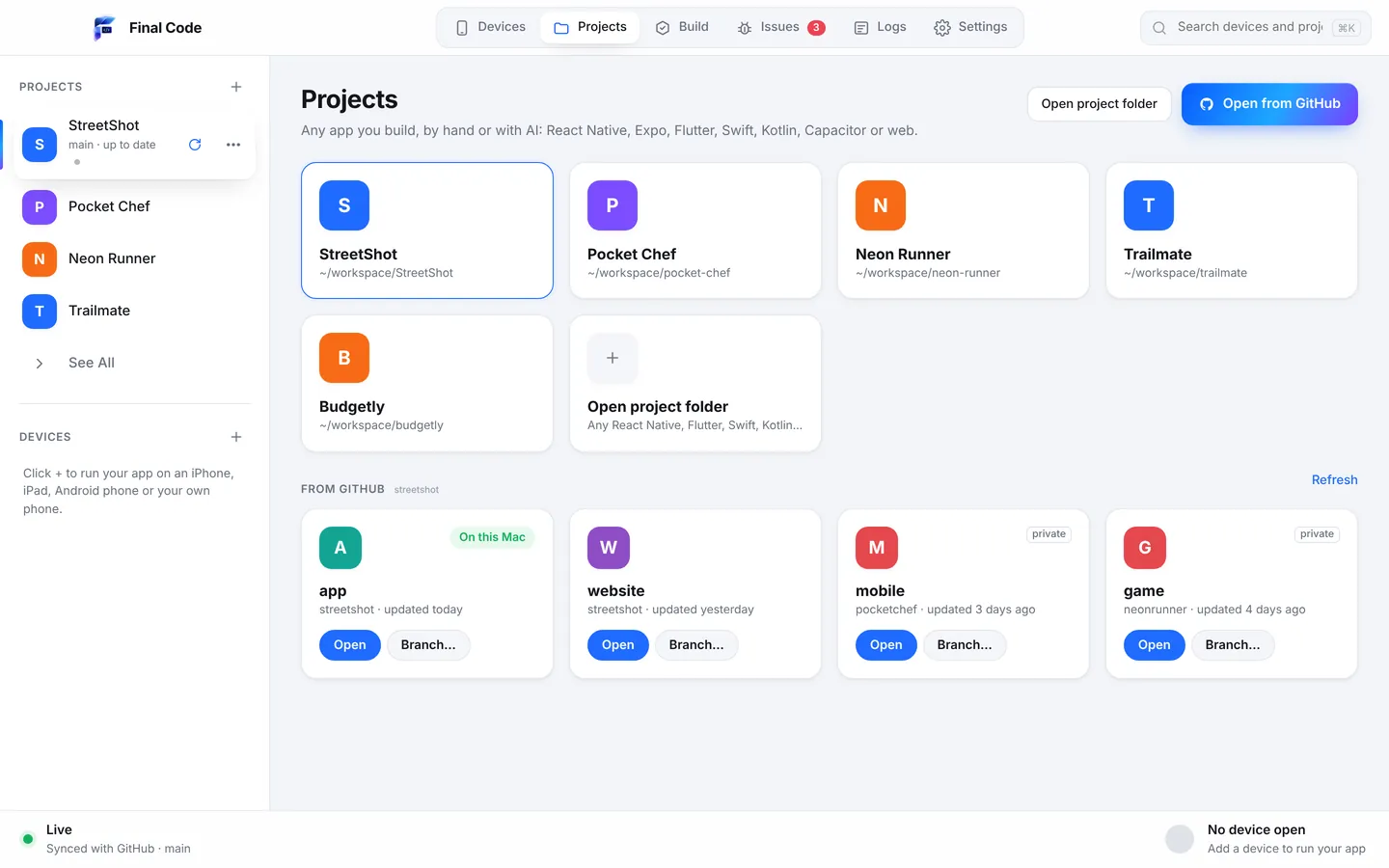
A lot of apps now live on GitHub first and on your Mac second, especially when an AI tool or a teammate is writing code. Final Code treats GitHub as a normal place to open projects from.
Open from GitHub
Pick any of your repositories and any branch, and open it in one click. Final Code chooses the newest branch with app code for you, so you rarely have to think about it.
Always in sync
Final Code checks GitHub every minute. When new commits arrive, it pulls them and every open device reloads. You watch the app change as the code lands.
Your edits are safe
If you changed files on your Mac, they are kept, or saved to a git stash. A sync never throws your work away.
Connect with a short code
Since version 0.5.0, connecting GitHub takes one click and a short code you approve in the browser. No command-line tools and no tokens to paste.
Finds and fixes problems
Most testing tools show you an error and leave the rest to you. Final Code tries to catch problems before they cost you an afternoon, and explains the rest in plain words.
Project check
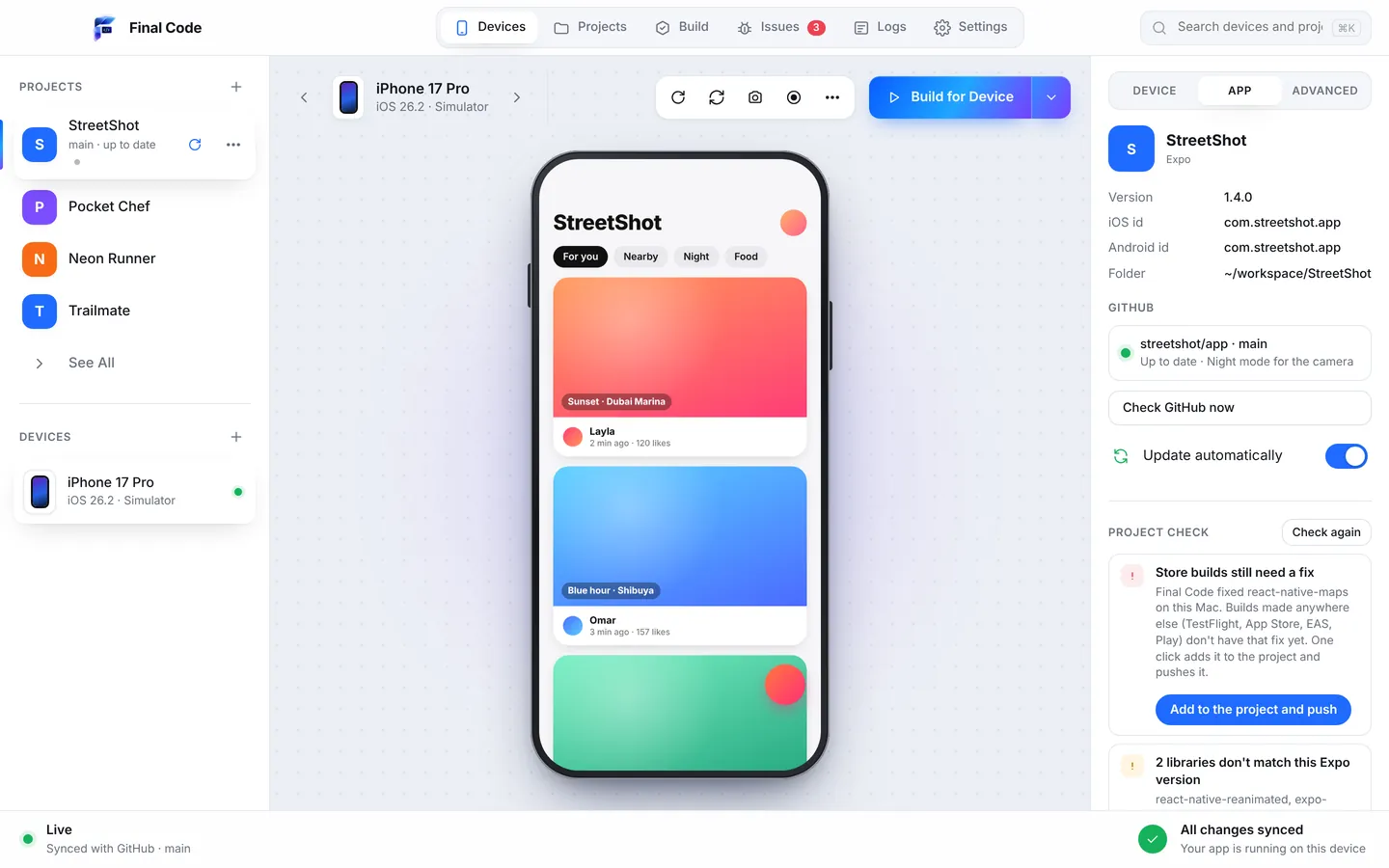
Runs when a project opens and when new code arrives. It looks for missing tools, libraries that do not match your Expo version, React Native APIs removed in the installed version, missing babel plugins, files the app loads that are missing, and worklets that use code declared below them.
Safe fixes by themselves
Anything that is safe to fix, Final Code fixes on its own. Anything that needs your OK gets one button. Either way, it tells you what it did in a sentence you can understand.
Release-only crashes caught early
Some removed React Native APIs only crash in release builds, the kind your users get. Project check spots them before you ship.
"Store builds need a fix"
When Final Code patches a library on your Mac, one button adds the same fix to your project with patch-package and pushes it, so TestFlight, App Store, EAS and Play builds get it too.
The Issues box
Every error, crash, failed build, setup problem and check finding becomes one issue per project, with no duplicates. Each shows how often it happened, on which device, the stack, and the log lines just before.
Issues that close themselves
When new code runs for 3 minutes without an issue, it is marked "looks fixed". If it comes back, it reopens. You always know what is still broken.
Phone session logs
Each launch on a real phone gets one log file: the app's JavaScript console, the phone's native output, the build and install steps, and crash reports with readable function names.
Setup problems explained
If the cause is outside your code, such as a sign-in method switched off in Supabase or Firebase not set up yet, Final Code says so and links to the right dashboard.
Share problem
New in 0.5.0: one report with what happened, the exact file and line with the code around it, what changed since the app last worked, the device and the Mac. Passwords, keys and tokens are removed first.
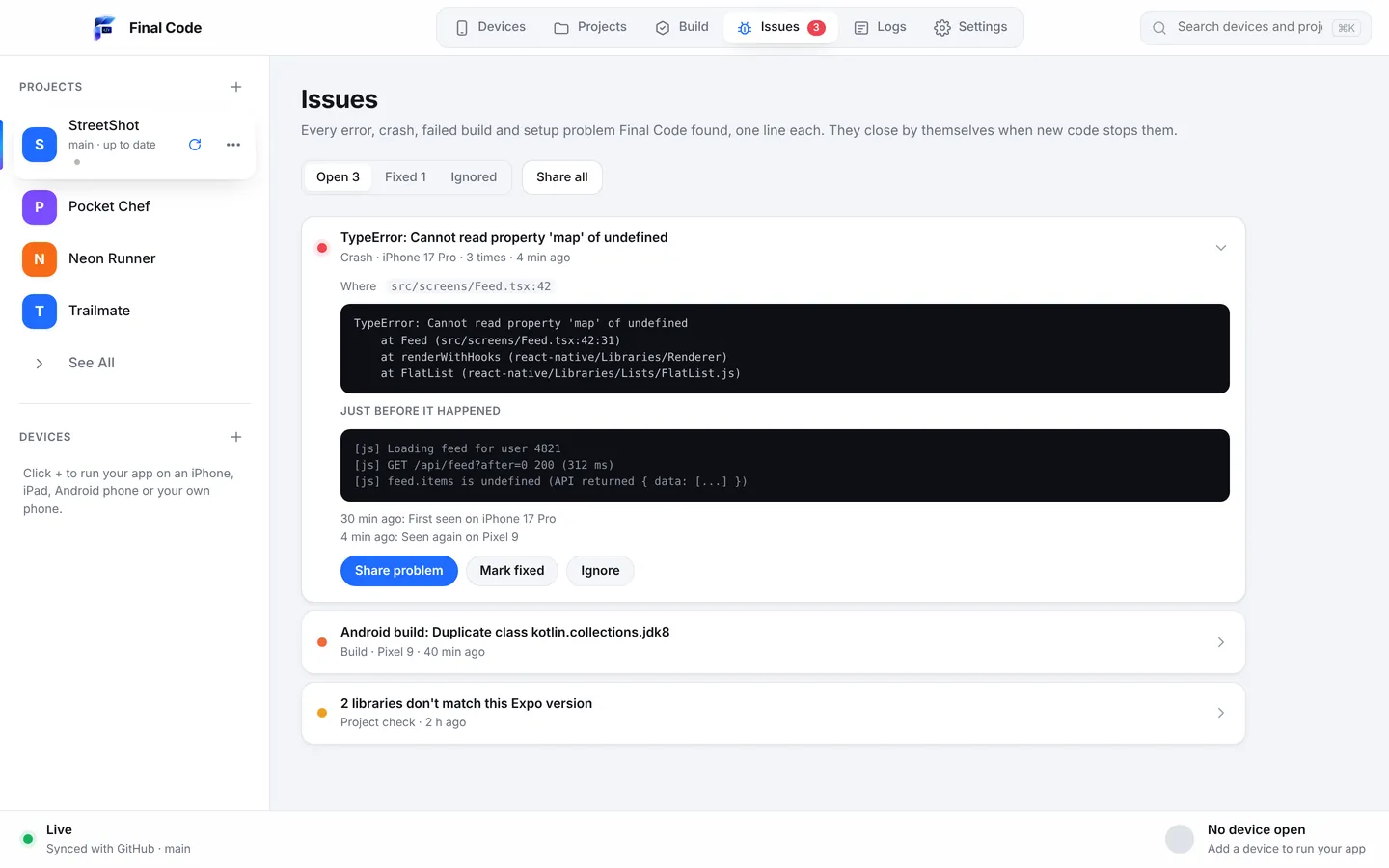
From a Share problem report you can choose what to do next: Explain this problem (Claude explains it in plain words with steps to fix it), Copy for any AI tool, Copy as text, a private link that lasts 7 days, a GitHub issue, or a file. It turns "it crashed" into something a teammate, a forum or an AI can actually act on.
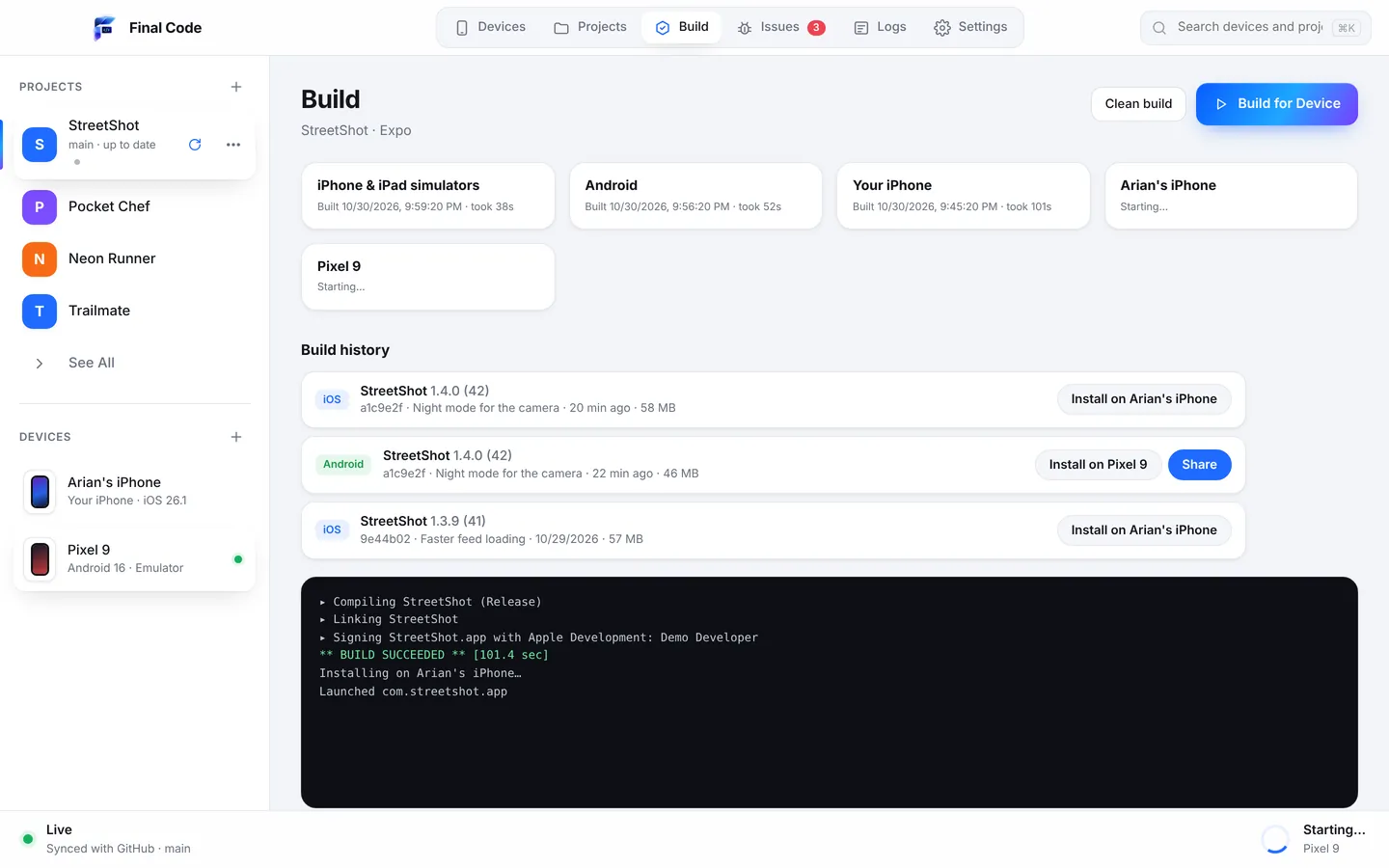
Builds and sharing
Every build that reaches a real phone is worth keeping. It is the quickest way to answer the question "when did this break?"
Build history
Each build that goes on a real phone is saved with its commit, date and size. Put any of them back on any device in one click and compare old and new.
Share an Android build on Wi-Fi
Anyone on the same Wi-Fi can install your Android build from a link or a QR code. Ideal for a quick test with a friend, a client in the room or the rest of the team.
Clean build and rebuild
Start fresh whenever you need to, without digging through folders or remembering commands.
Works with AI coding tools
AI assistants can write a lot of code quickly, but they usually cannot see the app running. Final Code gives them eyes and hands on real devices. There is a full page on this at Final Code for AI app builders; here is the short version.
The.finalcode folder
Final Code writes a .finalcode folder in your project with live status, logs, issues, screenshots and the build log. It is never committed to git.
AI can drive the devices
Through that folder, an AI assistant can ask Final Code to build, run, reload, tap, swipe, type, take screenshots and read the phone log. It can check its own work on real devices.
Picks up pushed code
When your AI tool pushes to GitHub, Final Code notices, pulls the code and rebuilds by itself. You just watch the phones.
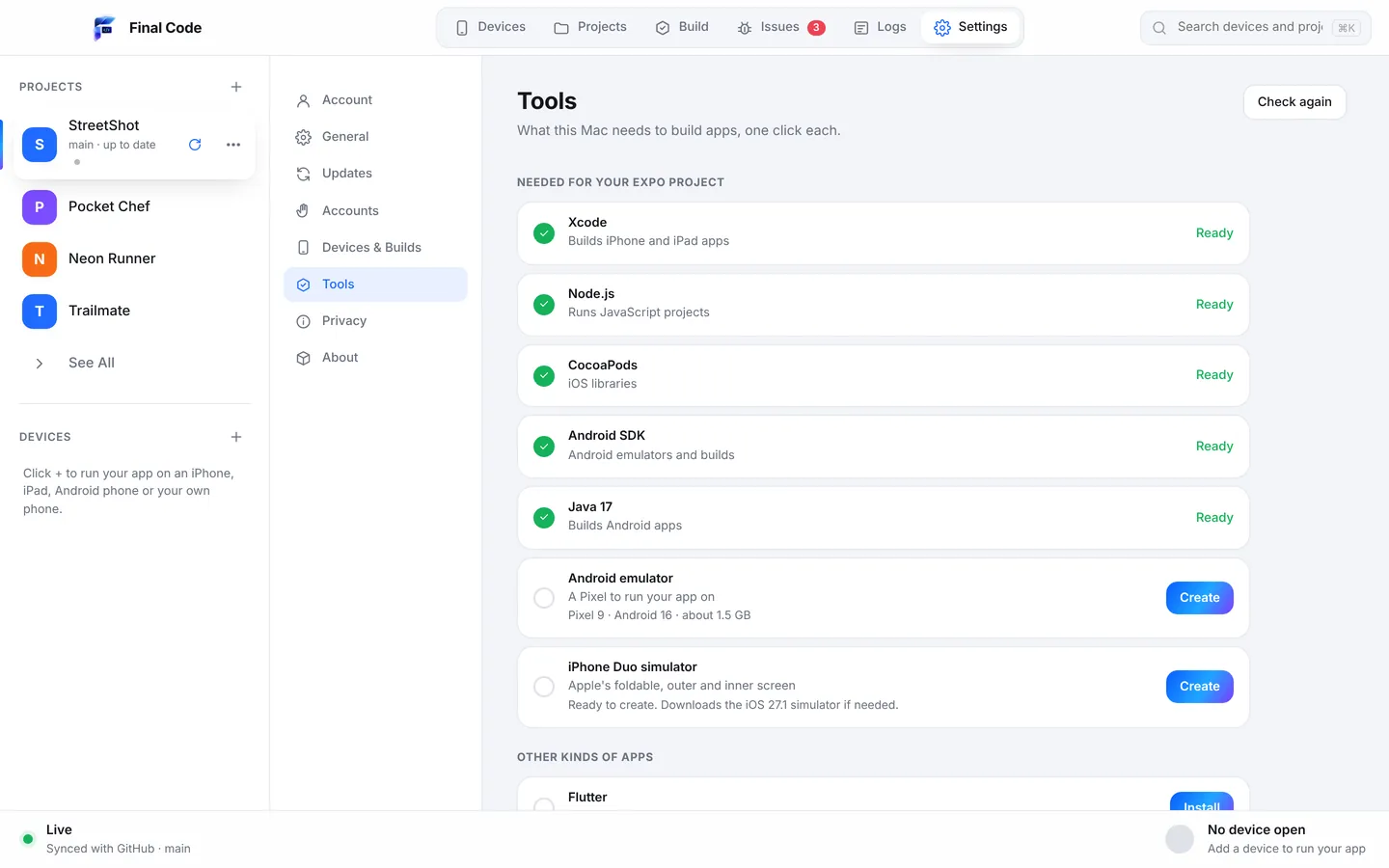
Setup and accounts
The hardest part of mobile development for many people is not the code. It is getting the Mac ready. Final Code does that work with you.
Tools in one click
Install or fix what your Mac needs: Xcode components, simulators, the Android SDK and emulators, Java, CocoaPods, Node and more. One click each.
Tools, one click each
Final Code finds what is already on your Mac and installs the rest from Settings → Tools, one click at a time, so you start from where you are.
Search everything
The search box at the top (⌘K) finds any device or project in a moment, so you are never more than a keystroke away.
Apple signing done for you
Add an App Store Connect API key or use the account already in Xcode. Apps are signed for your iPhone automatically, in every project.
Android found automatically
Final Code finds the Android SDK on your Mac by itself, and pairs phones over Wi-Fi with a code.
No passwords
Sign in with your email and a 6-digit code. Nothing to remember, nothing to leak.
Privacy and security
Your app is your work. Final Code is built so it stays yours.
- Your code never leaves your Mac. Builds, logs and screenshots all happen and stay on your computer.
- No analytics in the app. Final Code does not track what you click.
- A minimal membership check. It sends your email, your plan and a one-way code for the Mac. Never the serial number.
- Signed and notarized. The app is signed by CodeFather L.L.C-FZ and notarized by Apple.
- Signed updates. Small code updates install by themselves, checked at start, every 30 minutes and when you come back to the app. Release notes are on the changelog.
- Secrets stay out of reports. Share problem removes passwords, keys and tokens before anything is copied or sent.
Design
Final Code is beautifully designed, but the design is there to help you work, not to decorate. The app is organised into a few clear places: Devices, Projects, Build, Logs and Settings. Devices are the centre of the window because they are what you care about. Issues sit where you can see them without getting in the way. Fixes come as buttons with a sentence of explanation, not as a wall of red text.
It also follows your Mac: light and dark mode both look right, and devices can be popped out into their own windows when one screen is not enough. If you have ever juggled Xcode, Android Studio, a terminal and a phone on your desk, the difference is the calm of having one window that does it all.
How Final Code fits into your day
Here is what a normal hour looks like. You open the project from your Mac or from GitHub. Project check runs and fixes a mismatched library on its own. You pick an iPhone simulator, a Pixel emulator and your own Android phone, and press Run. The first native build takes a few minutes. After that, every save updates the simulator and emulator together.
You switch the emulator to offline in the inspector and a screen goes blank. The Issues box already has the error with the file and line. You fix it, the issue turns to "looks fixed" a few minutes later, and you put the release build on your phone to check it for real. Before lunch you share the Android build with a colleague over Wi-Fi with a QR code.
None of that needs a terminal, and none of it leaves your Mac. That is the point of an all-in-one testing tool: fewer windows, fewer steps, and more time spent on the app itself.
Where to go next
- Learn every way to test on phones in our step-by-step guide: how to test your app on iPhone and Android.
- Browse short practical tips in Final Code guides.
- Building with AI? Read how Final Code helps AI app builders.
- See how Final Code compares with other tools on the compare page.
- Check plans and the free trial, or get help in support.
What is the best mobile app testing tool for Mac?
It depends on what you build, but if you want to test on real iPhones, Android phones, simulators and emulators without juggling several programs, Final Code is made for exactly that. It detects React Native, Expo, Flutter, native iOS and Android, Capacitor, web and game projects, runs them on every device, and explains problems in plain words. There is a free 14-day trial, no card needed.
Can I run my app on several devices?
Yes. Pick as many simulators, emulators and connected phones as you like and press Run. Final Code builds once per platform and installs on each device, then you switch between them in one click; each keeps running. When you save code, every open simulator and emulator updates at the same moment, so iPhone and Android are both up to date when you switch.
Can I use the iOS Simulator and Android Emulator in one app?
Yes. Final Code mirrors iOS Simulators and Android Emulators live inside its own window. You click and swipe to touch, type with your keyboard, rotate, and use the home or back buttons. You do not need to keep Xcode or Android Studio open to use them, though Final Code relies on the tools they install, which it can set up in one click.
Does Final Code test on real iPhones and Android phones?
Yes. Connect an iPhone with a cable, unlock it and tap Trust. Connect an Android phone by cable with USB debugging, or pair it over Wi-Fi with a code. Real phones get real release builds with your code inside, so what you test behaves like what your users will download.
Do I need to know how to use the terminal?
No. Final Code is designed so you never need a terminal. Projects are detected automatically, missing tools install with one click from Settings, GitHub connects with a short code in the browser, and errors are explained in plain words with buttons to fix them. It is easy to use even if this is your first app.
Which frameworks and languages does Final Code support?
React Native, Expo (managed, bare, with or without a development client, including Expo Router), Flutter, Swift, SwiftUI and Objective-C, Kotlin and Java, Capacitor and Ionic, web apps such as React, Next.js, Vite, Vue, Svelte and plain HTML, and games built with Unity, three.js or React Native Filament. Monorepos with several apps are detected too.
How fast are updates while I am coding?
The first native build takes a few minutes. After that, saved changes show on simulators and emulators instantly through live reload or Fast Refresh. Final Code only rebuilds the native app when native code or libraries change, and it uses a shared download cache and a compiler cache so native rebuilds are faster too.
Does my code get uploaded anywhere?
No. Your code never leaves your Mac. Builds, logs, screenshots and issues all stay on your computer. The app has no analytics. The only thing that goes online is the membership check, which sends your email, your plan and a one-way code for your Mac, never its serial number.
Can AI coding tools use Final Code?
Yes. Final Code writes a .finalcode folder in your project with live status, logs, issues and screenshots. AI assistants can read it and ask Final Code to build, run, reload, tap, swipe, type, take screenshots and read the phone log. It also picks up code your AI pushes to GitHub and rebuilds by itself.
Does Final Code run on Windows or on an iPad?
No. Final Code is a Mac app for macOS 13 Ventura or later, on Apple silicon and Intel. iPhones, iPads and Android phones are the devices you test on: you connect them to your Mac, and Final Code installs your app on them. It does not run on Windows, Linux, iPad or phones.
Every device, one window.
Download Final Code and run your app on real phones, simulators and emulators in minutes. Free for 14 days, no card needed.