 Final Code
Final Code vs Xcode and the iOS Simulator
Xcode is where Apple apps are written and debugged. Final Code is where every kind of app is run and checked on every device.
Our verdict
Choose Xcode and the iOS Simulator if you write native Swift or SwiftUI and want Apple's full toolbox: the code editor, SwiftUI previews, breakpoints, the memory graph and Instruments for profiling. It is free, it is made by Apple, and no other tool goes as deep into an Apple app.
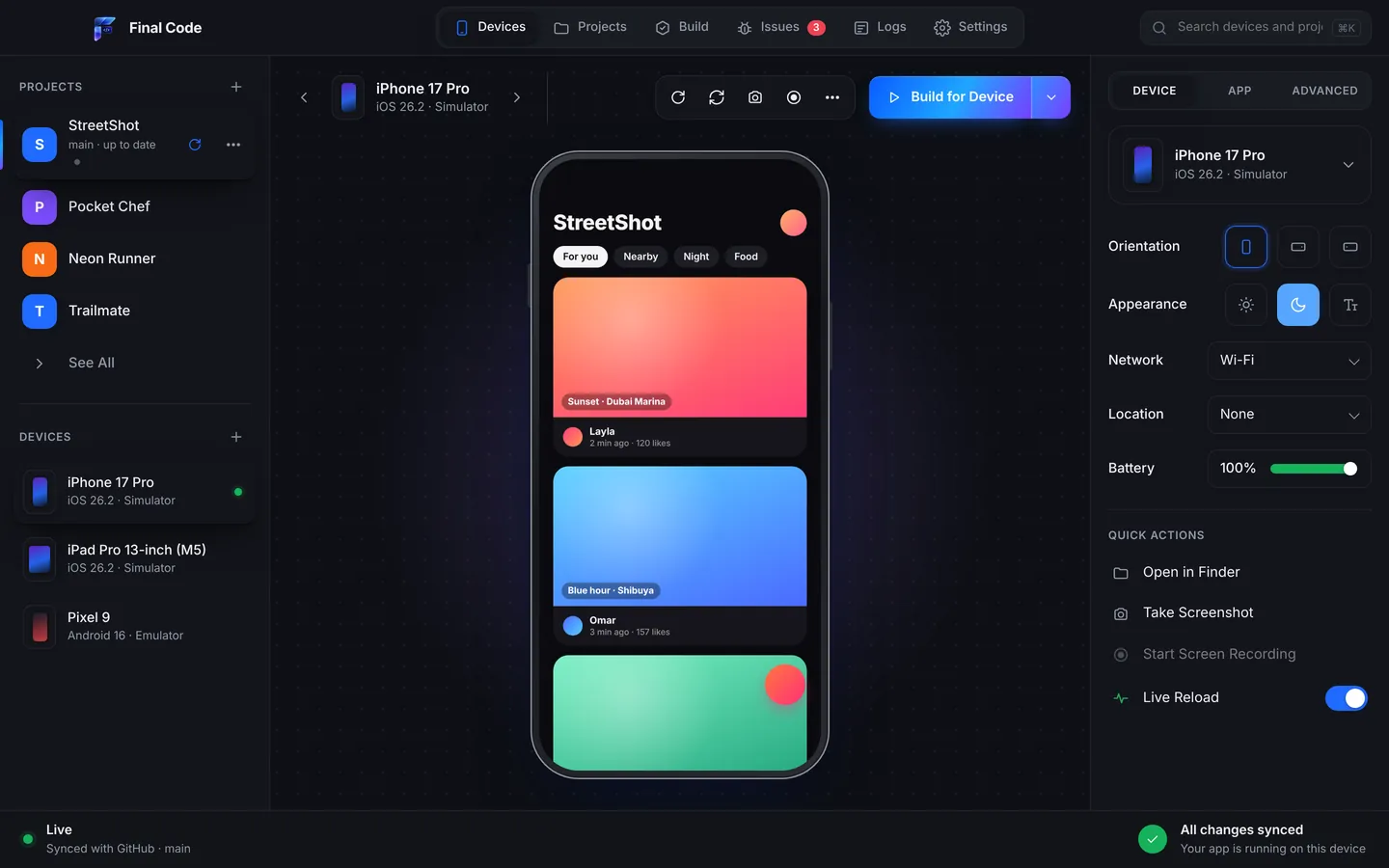
Choose Final Code if you want to see an app running on iOS Simulators, real iPhones and iPads, Android Emulators and Android phones, without learning Xcode's menus or using the terminal. It works for Swift projects and also for React Native, Expo, Flutter, Unity and web apps.
This is not either-or. Final Code uses the Xcode tools on your Mac to build iPhone apps. Think of Xcode as the workshop and Final Code as the test bench with every device lined up.
Where Xcode shines
Credit where it is due. Xcode is a free download from the Mac App Store and the official way to build for every Apple platform. For native development it offers:
- A full Swift and Objective-C editor with code completion and SwiftUI previews.
- A debugger with breakpoints, variable inspection and the view hierarchy.
- Instruments, for measuring time, memory, energy and more.
- Running on a real device by cable, or over Wi-Fi after pairing, with automatic signing.
- Xcode Cloud, which Apple includes with Developer Program membership with 25 compute hours a month at the time of writing.
If you are stepping through Swift line by line, Xcode is the right tool. Final Code does not have a breakpoint debugger and does not try to.
Where the Simulator stops
The iOS Simulator is quick and convenient, but Apple is clear about its limits. Its documentation says simulated devices run inside the Simulator app on your Mac and do not replicate the performance or features of an actual device, that some hardware-specific features might not be available, and that you should run your app on one or more real devices to confirm it behaves as intended.
In practice that means animations can feel smoother than they will on a phone, and anything tied to hardware is worth checking on the real thing. Final Code makes that last step easy: plug in an iPhone and press Run.
Final Code vs Xcode at a glance
| Final Code | Xcode + iOS Simulator | |
|---|---|---|
| What it is | Build, run and test app for any project | Apple's full development environment |
| Code editor and SwiftUI previews | No, use your own editor | Yes |
| Breakpoint debugger and Instruments | No | Yes |
| Android in the same window | Emulators and real phones | No |
| Several simulators visible together | Mirrored, one window | Separate Simulator windows |
| Project types | Swift, React Native, Expo, Flutter, Kotlin, Unity, web | Xcode projects and Swift packages |
| Set up a project | Detected automatically | Open the project, choose scheme and destination |
| Per-device settings | Inspector: orientation, dark mode, text size, network, GPS, battery | Simulator menus and Settings app |
| Problems explained in plain words | Project check and Issues box | Build errors and warnings in the Issue navigator |
| Keeps every build that reached a phone | Build history, reinstall in one click | Archives in the Organizer |
| Follows GitHub automatically | Pulls new commits every minute | Manual pull in Source Control |
| iPhone Duo simulator | Created for you (recent Xcode needed) | You add the simulator yourself |
| Price | $29/month or $249/year, 14-day free trial | Free |
Setup: schemes and signing vs one button
Opening a project in Xcode means picking a scheme, a run destination and a team for signing. For a native developer that is muscle memory. For someone who mostly writes JavaScript, or who built the app with an AI tool, it can be a wall of unfamiliar settings, and React Native projects add CocoaPods to the mix.
Final Code detects the project type for you, including Xcode projects and workspaces in Swift, SwiftUI and Objective-C. Connect your Apple developer account once, with an App Store Connect API key or the account Xcode already knows, and Final Code signs apps for your iPhone automatically in every project. If the Mac is missing Xcode components, simulators or CocoaPods, the Tools screen fixes it in one click. No terminal.
Speed in a normal working day
Xcode's incremental builds are quick for native code. Final Code adds two things on top. First, a shared download cache across projects and a compiler cache for native builds. Second, Final Code only rebuilds native code when native code or libraries changed, and otherwise reuses the last build. For React Native, Expo and Flutter work, saved changes appear instantly on every open simulator and emulator through live reload.
Final Code shows build progress with a percentage and time, so you always know how long is left.
Simulators, real devices and everything in between
In Xcode, each Simulator is its own window, and Android lives in a completely different program. Final Code mirrors simulators and emulators live inside its own window. You click and swipe to touch, type with your keyboard, rotate, and press home or back. Switch between devices in one click, and pop a simulator out into its own window.
Real iPhones connect by cable: unlock and tap Trust. They get real release builds with the code inside, so you are testing what users will run. For web apps, Final Code also previews iPhone, iPad, Android and foldable screen shapes. And if you are designing for Apple's foldable, Final Code can create the iPhone Duo simulator for you with a recent Xcode.
Release builds and debug builds
Running from Xcode usually gives you a debug build. That is right for stepping through code, but some problems only appear in release builds. A React Native API that was removed in your version, for example, may only crash in release. Final Code's project check looks for that, and real phones get release builds by default. Build history keeps each one with its commit, date and size.
Debugging and crash reports
Xcode is the deeper debugger, full stop. If you need to pause on a line and look at memory, use Xcode.
Final Code is better at the wider picture. It collects every error, crash, failed build and setup problem into one deduplicated list per project, with counts, the device, the stack and the log lines just before. Each launch on a real phone gets a session log combining the JavaScript console, the phone's native output, build steps and crash reports with readable function names. Issues close themselves after new code runs for 3 minutes without them. For cross-platform apps, that often finds the problem faster than attaching a debugger.
Working with AI coding tools
AI assistants such as Claude, ChatGPT, Cursor and GitHub Copilot can edit Swift, but they usually cannot drive Xcode's interface. Final Code gives them a simple route: the .finalcode folder with status, logs, issues, screenshots and the build log, plus requests to build, run, reload, tap, swipe, type and take screenshots. The AI checks its own change on a simulator or a real iPhone and reads the phone log. See Final Code for AI app builders.
Price
Xcode and the Simulator are free. Final Code is $29 a month or $249 a year after a 14-day trial with no card, and a membership covers up to 3 Macs. Details on the pricing page. You will keep Xcode installed either way, since Final Code builds iPhone apps with it.
Privacy
Both run on your Mac. Final Code does not send your code anywhere and has no analytics in the app; its membership check sends only your email, plan and a one-way code for the Mac.
Who should use which
- Native Swift developers: Xcode for writing and debugging, Final Code to see every device and Android build. See our Swift page.
- React Native, Expo and Flutter developers: Final Code for daily running and testing; open Xcode only for native deep dives. See React Native and Flutter.
- Unity developers: Final Code builds the iOS export for you. See Unity.
- Beginners and AI-assisted builders: Final Code, because it hides the scheme and signing setup and explains problems in plain words.
Using Xcode and Final Code together
A typical rhythm: write code in Xcode or your favourite editor, keep Final Code open with an iPhone simulator, an iPad simulator, an Android emulator and a real iPhone visible. Save, and watch them update. When a bug only happens on one device, check its session log in Final Code, then open Xcode to set a breakpoint if you need to go deeper. When Instruments is the right tool for a performance question, use it. Final Code takes care of the many quick checks around those deep moments.
Also building for Android? Read Final Code vs Android Studio. Want devices you do not own? See Final Code vs BrowserStack.
Is there an alternative to the Xcode Simulator that also shows Android?
Final Code is a Mac app that mirrors iOS Simulators and Android Emulators live in one window, next to real iPhones and Android phones. You can tap, swipe, type and rotate each one, and saved changes update every open simulator and emulator. It uses the Xcode tools on your Mac to build iOS apps, so Xcode stays installed.
Is testing on the iOS Simulator enough before release?
Apple says simulated devices do not replicate the performance or features of an actual device and recommends testing on one or more real devices. The Simulator is great for fast layout checks. Before release, run a real build on a real iPhone. Final Code installs release builds on a connected iPhone straight from your Mac in seconds to minutes.
Can I run several iOS simulators on a Mac?
Yes. In Final Code, several simulators and emulators run from one window and you switch between them in one click, each with its own inspector for orientation, dark mode, text size, network, GPS location and battery. You can also focus on one device or pop it out into its own window.
Do I need to know Xcode to test my app on an iPhone?
Not with Final Code. It detects your project, signs the app for your iPhone automatically using an App Store Connect API key or the account already in Xcode, and installs a release build when you press Run. Xcode must be installed on the Mac, and Final Code's Tools screen installs missing components in one click.
Does Final Code replace the Xcode debugger?
No. For breakpoints, memory inspection and Instruments profiling, Xcode is the right tool. Final Code focuses on running and testing across devices: it collects errors and crashes in the Issues box with stack, device and the log lines just before, and keeps a session log for each launch on a real phone.
How do I test the iPhone Duo on a Mac?
Final Code can create an iPhone Duo simulator for you, as long as a recent Xcode is installed. You can then run your app on it next to regular iPhones, iPads and Android devices, and switch orientation, appearance and text size from the inspector to check each layout.
Why does my app work in the Simulator but crash on my iPhone?
Common reasons are differences in hardware, performance, permissions or signing, and problems that only appear in release builds. Final Code helps by installing a real release build on your iPhone and recording a session log with the native output and crash reports with readable function names, so you can see what actually happened.
Can Final Code open native Swift and SwiftUI projects?
Yes. Final Code detects native iOS projects written in Swift, SwiftUI or Objective-C, as Xcode projects or workspaces, and builds and runs them on simulators and real iPhones and iPads. You can keep writing the code in Xcode while Final Code shows the result on every device.
Keep Xcode. Add every device.
Try Final Code free for 14 days and see your app on iPhone, iPad and Android.
Product names are trademarks of their owners. Comparison based on publicly available information as of October 2026.